Keep the content, choose the presentation
Find the right digital design for your menu.
Orvunai includes 15 menu themes. They vary in typography, product-card density, image treatment and category feel, while letting you change presentation without copying your products. Compare the same sample menu across designs in the gallery, paying attention to dish names, prices and photography.
Orvunai / 15
One menu. Many personalities.
Compare the same sample menu across the entire collection. Your content stays the same; the presentation changes.
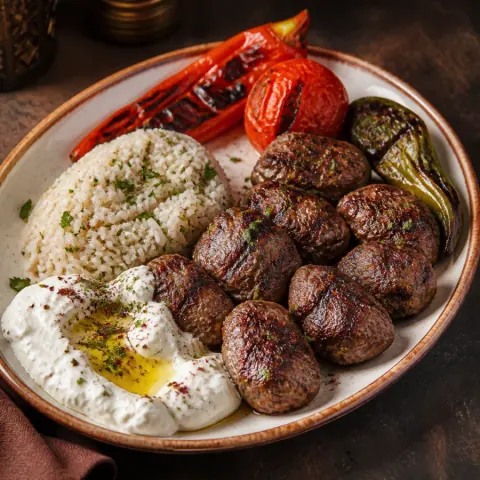
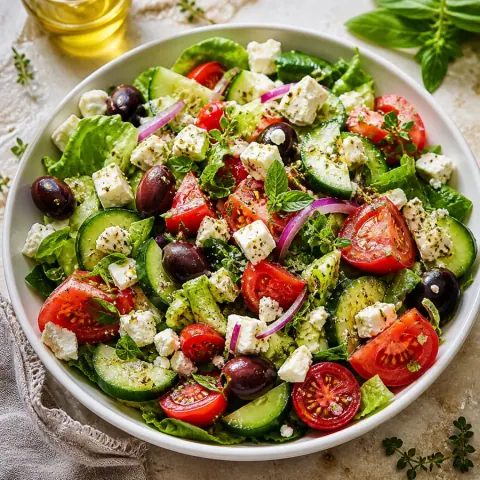
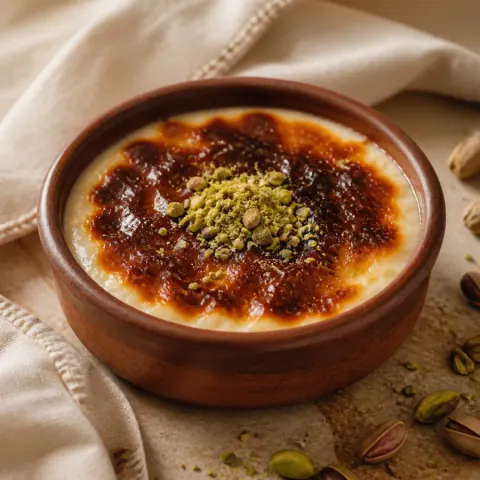
Minimal list
Atelier Minimal
Photo stories
Anatolia Warm
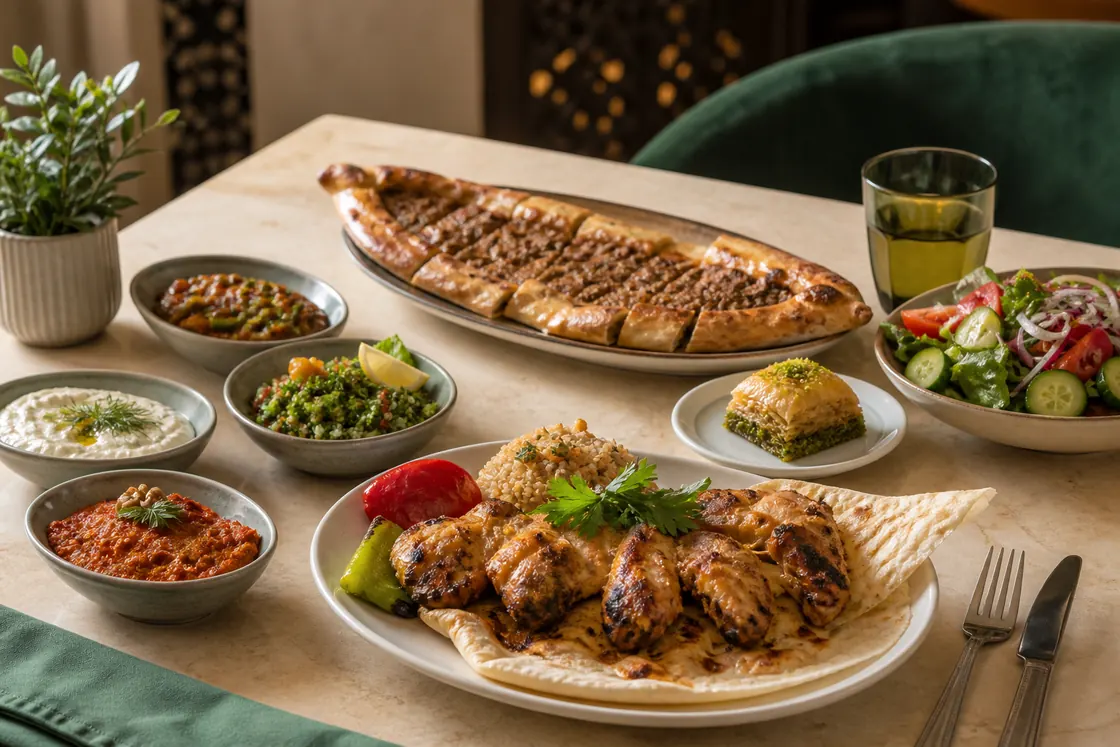
Editorial
Midnight Luxe
Photo cards
Botanical Fresh
Photo cards
Street Bold
Horizontal list
Coastal Blue
Editorial
Trattoria Classic
Horizontal list
Sakura Soft
Minimal list
Nordic Paper
Compact
Coffee Craft
Photo stories
Neon Night
Photo cards
Family Fresh
Editorial
Maison Serif
Compact
Quick Bites
Photo stories
Photo Story
This is a fictional restaurant's sample menu. Dishes and prices are for demonstration only.
Choose with your own menu, not a sample cover
A short coffee list and a dinner menu with detailed descriptions behave differently in the same layout. Compare your longest product name, several price formats, and products with and without photographs. Compact designs can make a dense menu faster to scan, while larger cards may give strong, original food photography more room.
A theme is more than a color choice. Heading hierarchy, category transitions, spacing and price position all affect how a guest reads. Orvunai keeps content separate from presentation, so switching themes does not require rebuilding categories and products.
Use logos, covers and brand color with restraint
A logo and cover establish identity, while a brand color provides emphasis within the selected theme. A striking cover cannot compensate for an unreadable price, so preserve contrast and text size throughout the menu. Choose original photographs that accurately represent the dishes your business serves.
Products without photos do not need unrelated stock imagery. Preview the theme with both photographed and text-only cards. Check how cover and product images crop on a phone; if the subject disappears on a narrow screen, choose a better crop or source image.
Test narrow screens and longer translations
A QR menu is usually opened on a phone. Try category navigation, product search, detail views and back navigation on a real device. At a narrow 320-pixel viewport, the layout should not create page-level horizontal scrolling, and core prices and actions should remain clear without zooming.
Other languages can make names and descriptions longer, while languages such as Arabic also change reading direction. Preview every language you enable. Choosing a theme only because it looks good in the default language can hide wrapping and alignment problems in the multilingual experience.
Verify the real experience before publishing
After selecting a theme, inspect categories, product cards, descriptions and prices in menu preview. Open the published guest link to confirm the final result. Because design changes affect the live restaurant menu, they should move through the same controlled publishing flow as content updates.
A menu template does not generate the restaurant’s product facts. Names, descriptions, prices, allergen fields and photography come from the business’s real data. Design presents that information more clearly; it cannot replace missing or unverified content.
A few useful answers
Frequently asked questions
How many menu designs does Orvunai include?
The current product includes 15 themes. Theme access and other limits can vary with the current plan catalog.
Will changing the theme delete my products?
No. Menu content and theme are managed separately, so you can change presentation without entering products again.
Can I use my own logo and color?
Add a logo, cover and brand color in business settings. They are applied within the design boundaries of the selected theme.
Do themes work with multilingual menus?
Themes can be used with menu languages. Still test long translations and right-to-left languages on a phone with your actual content.
Explore the topic
Related practical guides
The next step for your menu
QR code menus for restaurants and cafés
Create a mobile digital menu with Orvunai, organize your dishes and share a lasting QR link. Explore menu design, publishing, updates and guest browsing.
QR Menus for Restaurants
Use starters, main courses, desserts and drinks to make a large menu easier to browse. Let guests search products and inspect descriptions before talking to your team.
QR Menus for Cafés and Coffee Shops
Organize coffees, cold drinks and desserts so guests can find today’s choices. Publish price updates through the same QR link.
Make the next menu yours.
Start with your own products. See it through your guest’s eyes.